
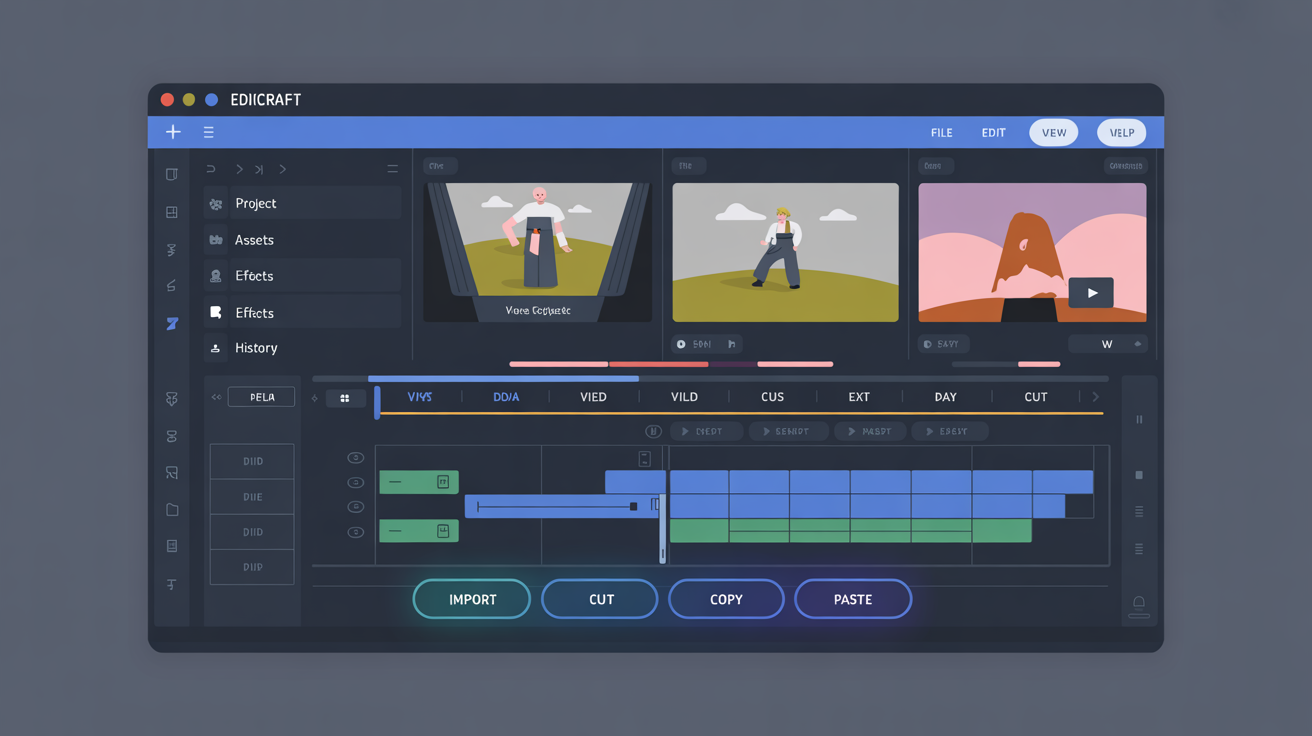
Edicraft can experience operational disruptions from system conflicts or configuration settings. These steps provide concrete actions to diagnose and correct them without additional tools.
Step 1: Address Application Launch Failures
Confirm the installed version matches the platform requirements. Restart the device and attempt to open Edicraft again from the applications menu.
If the program does not respond, open a terminal window and execute the following command to view error details:
edicraft --logReview the output for references to missing libraries or permission restrictions. Adjust file permissions on the installation directory if needed.
Step 2: Correct File Open or Save Errors
Verify the target directory has write access. Select a different location for saving and test the operation.
- Check disk space availability through system utilities.
- Disable any active antivirus scans temporarily during file access.
- Confirm file paths do not exceed length limits on the operating system.
Use the command line to test file handling:
edicraft --file /path/to/document.txtRepeat the save action after clearing temporary cache folders located in the user profile.
Step 3: Improve Response Times During Use
Close background applications that consume memory. Adjust Edicraft preferences to limit concurrent document loads.
Monitor resource usage with built-in system monitors while running Edicraft. Reduce the number of open panels if CPU utilization remains elevated.
- Set editor font size to default values.
- Disable automatic backups in the settings panel for large projects.
Restart Edicraft after each change and measure task completion speed.
Step 4: Restore Keyboard Shortcut Functionality
Access the settings menu and review the shortcut mappings. Reset them to standard values if conflicts exist with other software.
Test individual shortcuts in a new document. Update the input method if the system language differs from the application setting.
Reinstall input drivers for the platform if shortcuts remain unresponsive after reset.
Step 5: Handle Update or Sync Problems
Check network connectivity and firewall rules that may block connections. Download the latest installer from the official site and run it over the existing installation.
Compare version numbers in the about dialog before and after the process. Clear the update cache folder if the operation stalls.
Verify platform-specific paths for configuration files and restore defaults from a backup copy if available.