
Step 1: Access the Integrations Panel
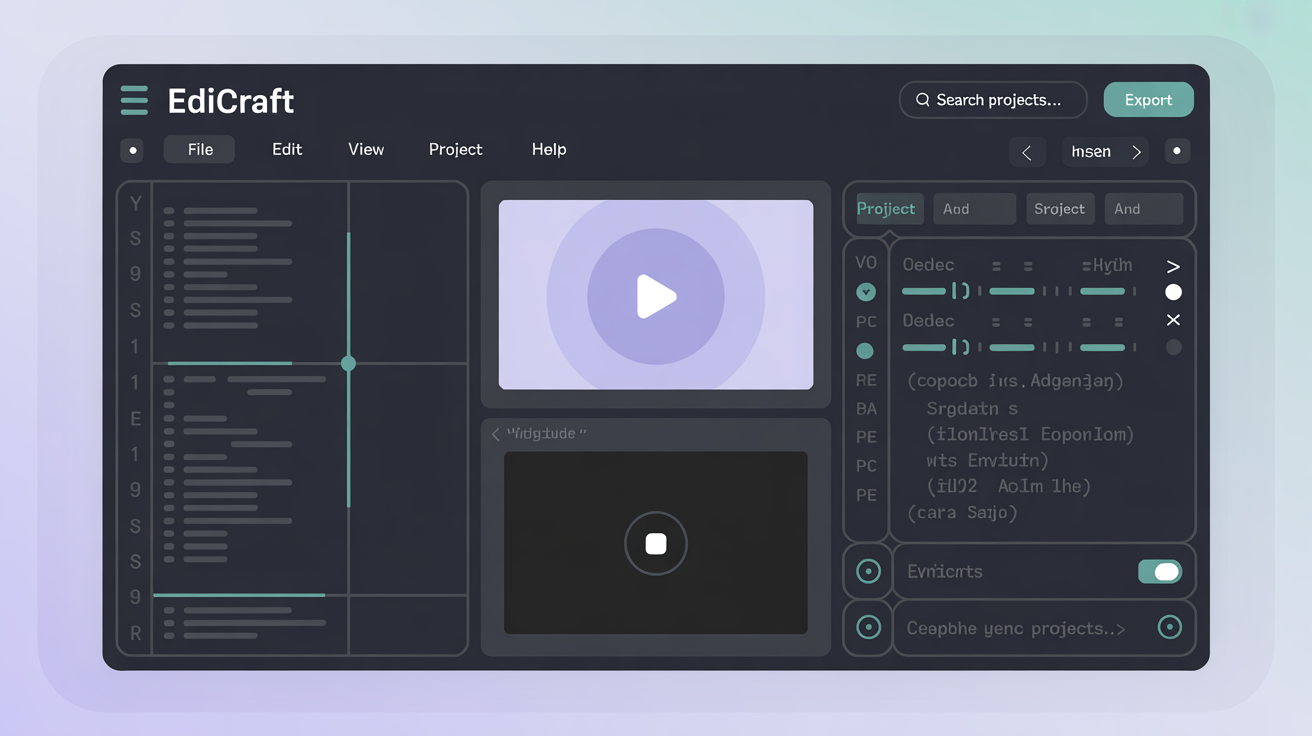
Launch Edicraft on your Windows, macOS or Linux system. Select the project that requires an external connection. Click the settings icon in the top toolbar then choose Integrations from the menu. The panel lists available services in a compact grid.
Step 2: Choose a Service
Review the displayed options such as cloud storage or task trackers. Click the desired service card to begin setup. A detail view opens with supported features and required permissions. Confirm the selection before proceeding to authentication.
Step 3: Authenticate the Connection
Enter your account credentials in the secure dialog that appears. Use the provided fields for username and token or sign in through the browser prompt. Edicraft stores tokens locally on your device. After successful login a confirmation message displays the connected status.
Step 4: Configure Settings
Adjust sync frequency and data scope in the configuration form. Select specific folders or labels to include. Apply changes with the save button at the bottom of the form. Review the summary list to verify selections match your workflow.
Step 5: Test and Verify
Run the connection test from the same panel. Monitor the progress indicator until completion. Check the activity log for any transfer details or errors. If issues arise repeat the authentication step with updated credentials.
Step 6: Manage Multiple Connections
Return to the main Integrations panel to add further services. Each connection appears as a separate row with status indicators. Disable or remove entries through the actions menu when needed. All linked services remain active across project sessions.
Additional Notes on Usage
Keep your operating system updated to maintain stable network handling. Review the activity log regularly after initial setup. Connections persist until manually removed through the interface. This approach supports consistent data flow between Edicraft and external tools without repeated manual entry.