
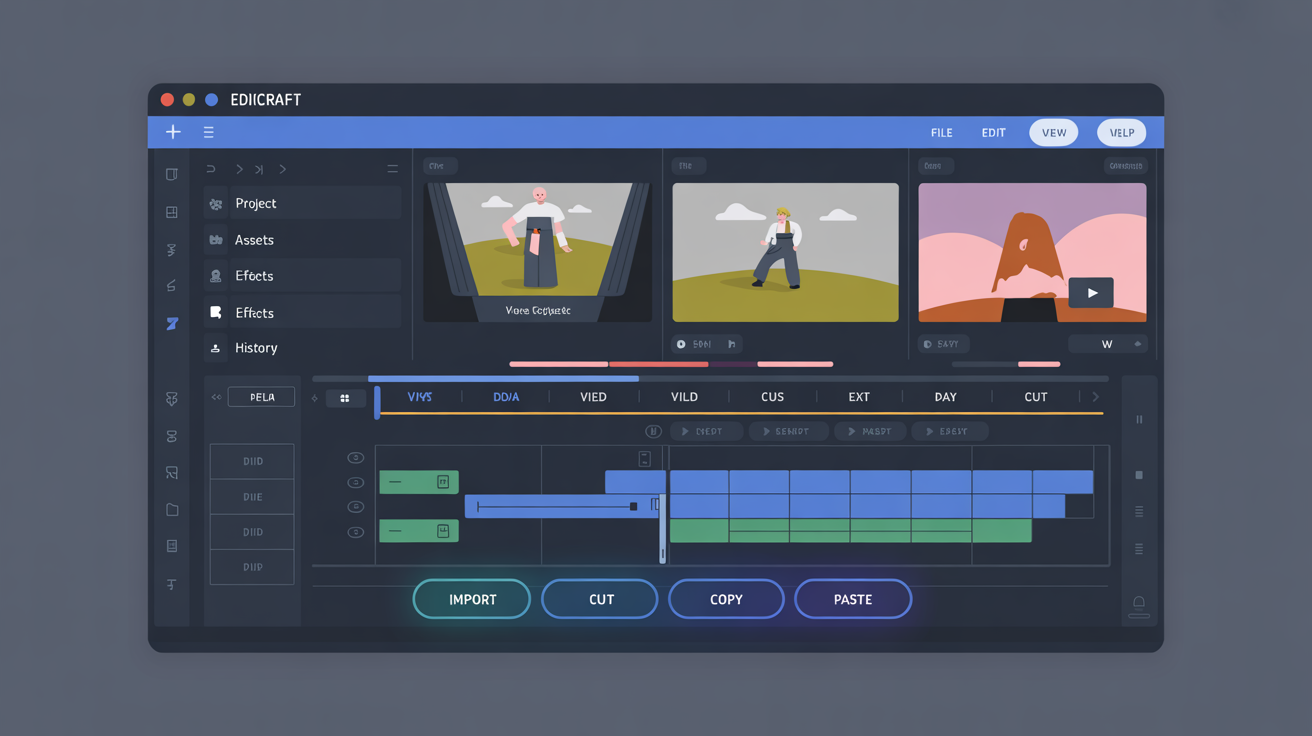
Step 1: Setting up custom key bindings
Launch Edicraft and navigate to the preferences panel through the main menu. Select the input section to view default mappings. Replace existing entries with new combinations that align to your routine tasks. Test each change immediately by applying it in an open document. Save the profile to retain adjustments across sessions.
Step 2: Adjusting rendering parameters
Access the display controls to modify font sizes and spacing values. Input specific measurements that reduce eye strain during extended work periods. Apply changes and verify output on both light and dark themes. Export the configuration file for backup on other machines running the same operating system.
Step 3: Integrating external file handlers
Locate the extensions area within settings. Add paths to compatible tools that process output formats. Confirm connections by running a sample file through the pipeline. Monitor logs for any errors and correct path entries as needed. Repeat the process for additional handlers to expand capabilities.
Step 4: Managing project structures
Create a new workspace and define folder hierarchies directly in the interface. Assign labels to groups of files for quick access during navigation. Use the search function with filters to locate items based on attributes like modification date. Organize content into categories that match typical project flows. Update the structure periodically to reflect changes in scope.
Step 5: Optimizing performance on varied hardware
Review resource usage statistics available in the diagnostics view. Lower cache limits if memory constraints appear during large file loads. Enable batch processing for tasks that involve multiple documents at once. Restart the application after adjustments to confirm stability. Compare results on different platforms to ensure consistent behavior.
Step 6: Scripting repeated actions
Enter the command console and record sequences of common edits. Assign triggers to these scripts for one-step execution. Review the script list to remove unused entries and maintain clarity. Test scripts in isolated documents before applying them to active projects. Store scripts in a dedicated directory for version control.
- Verify all paths exist before running scripts.
- Limit concurrent operations to prevent overload.
- Document each script with inline notes for future reference.
Follow these steps in sequence to build a tailored environment. Each adjustment builds on the prior one to create measurable improvements in daily use.